

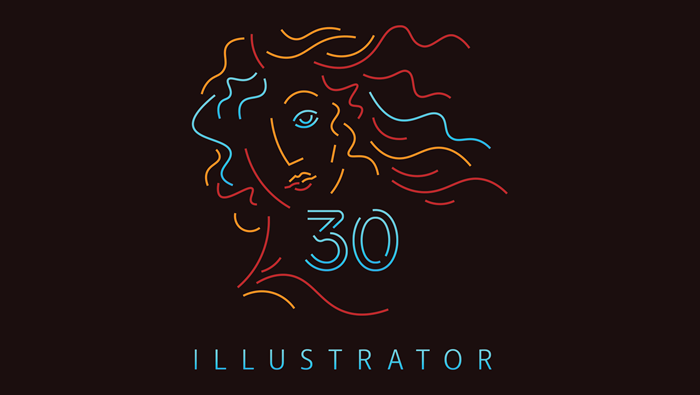

Illustrator's Venus
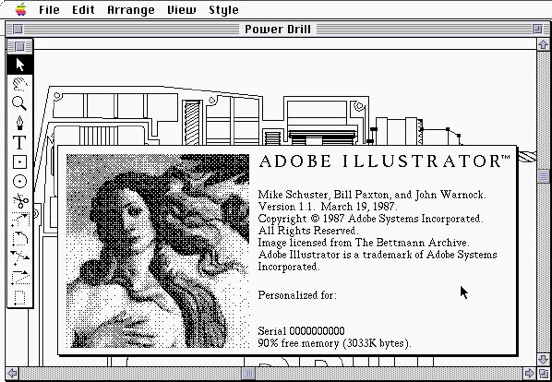
John Warnock of Adobe Systems Inc. licensed Botticelli's Birth of Venus (c. 1486) to brand Illustrator in the late 1980's.
How much did that cost Adobe and how did Botticelli's heirs, estate or representatives profit from the deal? The art of doing business…
NCPD 212 Illustrator
NCPD 212 Illustrator is a non-credit MICA seminar, providing students with a basic working knowledge of Adobe® Illustrator® CC. Subjects covered include drawing, bézier curves, color, gradients, patterns, typography, effects and much more. Students will learn how Illustrator files are exported and used in other applications such as Adobe Photoshop® and Adobe InDesign®. New features and best practices will be discussed, investigated and utilized throughout this seminar.
Prerequisite: basic knowledge of computers is required for all computer classes.
Bonus: experience with drawing, painting, color theory, design, sculpture, photography, light & shadow, psychology of art & human emotions, art therapy, and how the Universe works will be to your benefit :)
Recommended materials/supplies: students should bring a notebook and pen/pencils, as well as a USB Flash drive to transfer digital files to & from class.
Food & Drink: students are encouraged to bring food and drink to class. We'll have a 30 minute lunch break and other breaks during the day. Local restaurants are limited and campus vending machines are, well, vending machines… loaded with who knows what? Bring drinks, lunch & snacks, it's all good :)
Adobe Trivia: Illustrator and Photoshop are siblings, with Illustrator being the big sister and Photoshop the little brother (Illustrator was a 1987 Adobe creation/release with Botticelli's Venus as it's icon (female) and Photoshop as an acquisition by the Knoll brothers (males) in the late 1980s). Adobe thought Photoshop would be second to Illustrator, but they were mistaken – Photoshop took off and proved to be the more popular of the two applications due to it's unique capabilities in manipulating photographs (bitmap images). Both applications work extremely well together in being able to produce vector graphics & raster images (bitmaps) for artists, designers, photographers and other creatives around the world.
InDesign was the late comer into the Adobe family in 2000, an acquisition from Aldus in 1994 (formerly Aldus PageMaker, then Adobe PageMaker, aka RageMaker among designers and pre-press technicians due to the multiple work-arounds needed in order to print the digital files correctly) and is viewed as a baby sister to the two older siblings. Adobe released InDesign 2 in 2002 and in an interview with an Adobe representative I was asked what I thought of the new version (since version 1 had numerous issues). I excitedly answered, "It's Adobe Illustrator on page layout steroids!" InDesign has many of the same capabilities Illustrator does, with it's strength in being able to layout multi-page documents and process type (lots of type!) effortlessly.

Adobe® Creative Cloud™ Mobile Apps
FREE Creative Cloud mobile apps…
Adobe Photoshop Lightroom for mobile
Now, you can get your creative on anywhere!
Schedule at a glance (subject to revision)
June
10 Morning session: introduction – overview of course. Setting up your computer for digital imaging & illustration; customizing System & Finder preferences. Getting started with Adobe Illustrator: setting application preferences and color settings. Defining vector graphics (resolution independent objects) and raster images (resolution dependent bitmaps). Creating & saving documents. Exploring the drawing tools to create lines and shapes (paths). Modifying path segments and anchor points with tools and modifier keys. Coloring lines and shapes with strokes & fills.
Afternoon session: modifying paths with effects. Drawing & combining simple shapes to produce complex graphics. Best practice in using layers & nested layers to create art. In-depth look at layer structure, hierarchies and arrangements. Explore character design in Illustrator. Discuss concept of duplication & modification to expedite your workflow. Review saving documents.
17 Morning session: review students works. A quick look at Adobe Bridge and how it fits into your digital workflow. Working with gradients, blends & patterns. Exploring gradients and patterns for fills & strokes. Continue with drawing tools, strokes & fills to create unique illustrations.
Afternoon session: working with bitmaps (digital images) and exploring Image Trace features in Illustrator. Masking images & objects. Placing and transforming bitmaps into patterns and brushes. Discuss brush options and libraries, creating & saving custom brushes.
24 Morning session: review students works. Typography in Illustrator. Discuss fonts, character and paragraph options. Investigate Adobe's optical vs metric kerning. Explore Illustrator's keystone feature, type on paths. Working with fonts, live text and creating outlines for final delivery. Working with the Appearance panel for unique type effects.
Afternoon session: getting started with logo design in Illustrator. Discuss corporate branding, logo creation and collateral. Review vector graphics and raster images (benefits). Working with multiple layers, outlines, swatches, color libraries, color modes and file formats (AI, EPS & PDF). Working with multiple Artboards. Examine Document Setup, Document Color Mode (RGB & CMYK) and File Info menu items. Adobe InDesign: placing Illustrator art (Show Import Options & Object Layer Options). Investigating similarities and differences (benefits) among the Adobe Creative Cloud applications.
July
01 Morning session: review students works. Illustrator and the Web: File > Export > Save for Web… image preparation techniques for digital display (standard and high density pixel displays). Discuss JPG, GIF, PNG, SVG & PDF formats and best practices. Adobe Photoshop: opening, placing and pasting Illustrator files in Photoshop. Photoshop's Smart Objects and Smart Filters. Editing Smart Objects in Illustrator. Rasterizing Illustrator art when printing issues occur.
Afternoon session: Q&A session about the Adobe Creative Cloud. Student presentations & digital file collection. Wrap up with What's Next?
Thanks for participating in NCPD 212 Illustrator. Have a great Summer & keep on Illustratoring!
Notes & Projects
The Birth of Venus
Take a look at the history of Adobe Illustrator.
The Adobe Illustrator Story
When Adobe Illustrator first shipped in 1987, the new product not only altered Adobe's course, it changed drawing and graphic design forever. See how Adobe Co-Founder John Warnock first conceived of Illustrator as a PostScript drawing tool and how PostScript's Bézier curves could be applied to the shapes illustrators painstakingly created by hand. – May 2014, video, 19:01
Learn more about the history of Adobe Illustrator
Knock Knock – Multi-screen Animation
Brunettes Shoot Blondes: Knock Knock – Slick animation using Apple devices and a whole lot o' creativity. Looks like a whole lot o' Illustrator too!
The X-Files 2016 Promotional Animation – Ask Yourself

The X-Files – Miniseries Premiered on Fox, January 24, 2016 : From Adobe Illustrator to Adobe Photoshop – graphics for animations like this can begin in Illustrator and be processed in Photoshop to create animated GIFs that can be emailed or posted on the Web.

Project One
10 Digital Drawings
Due: June 17th
Concept: Exploring Adobe Illustrator.
Project Brief: Explore Adobe Illustrator's shape and drawing tools and create 10 vector illustrations. Anything goes – be creative and have fun!

- Getting Started – Don't let the blank canvas syndrome interfere with this project. Just do it. This project is simply about playing with Illustrator's tools and features, it's not about creating masterpieces. Make new documents, cut loose and make a lot of marks, it's all good! Be sure to save your files to bring in for our next class.
- Create by Adobe – Adobe Create Magazine brings you profiles of some of the world’s most innovative artists—shining a spotlight on amazing work in photography, graphic design, film, type, illustration, architecture, and more.
- Illustrator Help / Workspace basics
- Illustrator Help / Tool galleries
- Illustrator Help / Drawing simple lines and shapes
- Illustrator Help / Editing paths
- Illustrator Help / About color
- Illustrator Help / Selecting objects
- Illustrator Help / Painting with fills and strokes
For those who need to know more…
- Vector Graphics – Wikipedia
- Bézier Curve – Wikipedia
- Pierre Bézier – Wikipedia – French engineer, popularized Bézier curves for computer graphics
Specifications: 10 files, RGB color, Adobe Illustrator format
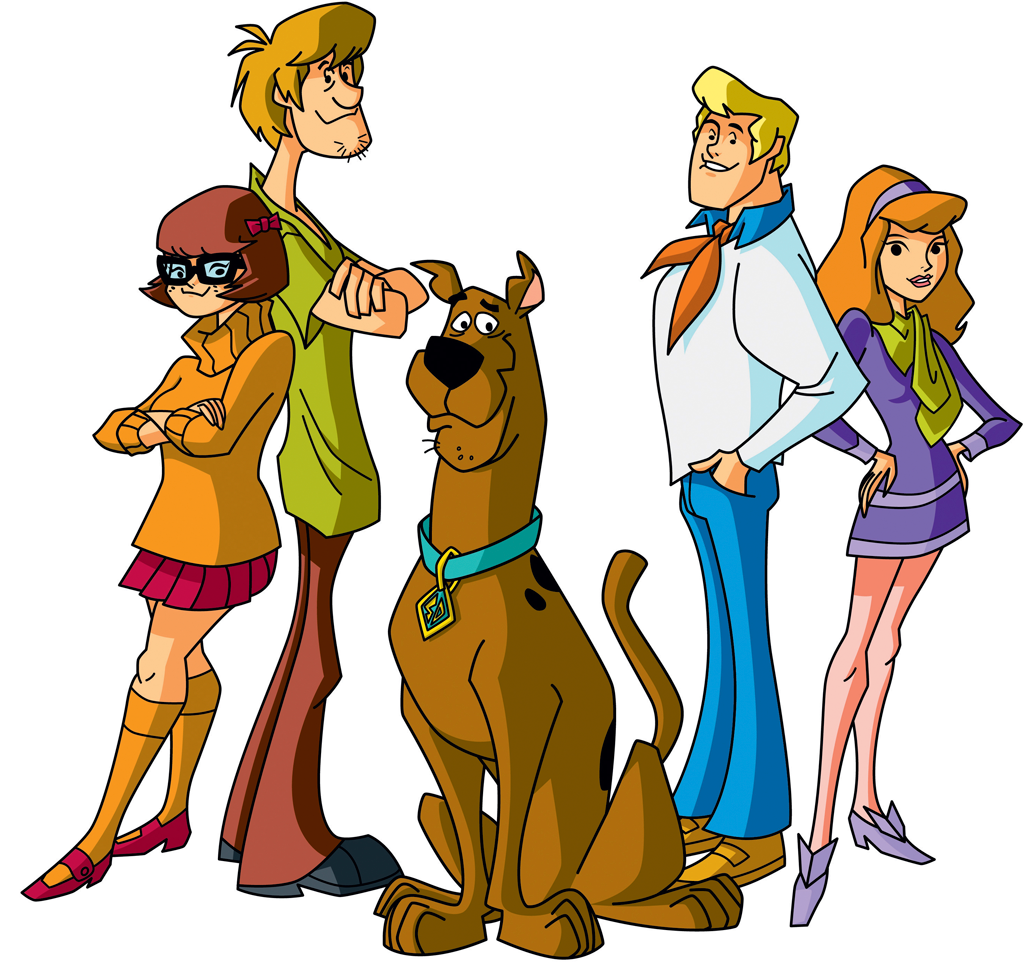
Scooby-Doo! Mystery Incorporated (2010–2013, Warner Bros. Animation)
The characters have gone through many design changes from their original appearance in 1969 . Click for larger image.
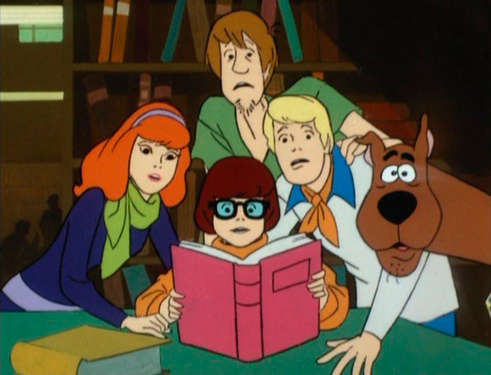
Scooby-Doo, Where Are You!, What a Night for a Knight (1969, Hanna-Barbera Productions)
Frame from the first episode which aired on Saturday morning, September 13, 1969. Created by Joe Ruby & Ken Spears. Animation at that time was achieved by hand, with lots of drawing, painting & inking, as well as using Xerox photo copiers.
Project Two
Character Study
Due: June 17th
Concept: Develop a character (or more) in Adobe Illustrator.
Project Brief: Explore Adobe Illustrator's shape and drawing tools and create a vector illustration of a character. Use solid colors for fills, strokes, shading and highlights. Step outside your comfort zone and see how it feels!
How to Draw a Horse's Head – example of using simple shapes to create art
- Getting Started – Watch a cartoon or two for inspiration. Search the web for images of your favorite character(s) – look for images shaded with solid color versus gradients (we'll be covering gradients next week) as discussed in class.
- What is Illustrator? – video, 1:00
- Illustrator Help / Drawing basics
- Illustrator Help / Drawing with the Pen, Pencil or Flare tool
- Illustrator Help / Transforming objects
- Illustrator Help / Combining objects
- Illustrator Help / Creating shapes using Shape Builder Tool
- Bitmap vs Vector – video, 5:00
- Photoshop Help / Image essentials – info about bitmaps and vectors
- Photoshop Help / Raster & Vector
- Cartoon Fundamentals: Create Emotions From Simple Changes in the Face
- Create a Comic Character: Making a Character Sheet in Adobe Illustrator
Specifications: RGB color, Adobe Illustrator format

The Incredible,
Edible Egg
Gradients can be used in Adobe Illustrator to create dimensional artworks that are infinitely scalable!
Project Three
Gradients
Due: June 24th
Concept: Use gradients to create rich, dimensional vector artworks in Adobe Illustrator.
Project Brief: Continue exploring Adobe Illustrator's shape and drawing tools and create an illustration using gradients, blends and transparency. Use gradients for fills, strokes, shading and highlights. Walk the edge and create something new for yourself!
- Getting Started – Observe your surroundings – gradients are everywhere. Subtle and harsh color transitions occur naturally with various light sources, angles of illumination, time-of-day, location, etc. Artists have challenged themselves for centuries with trying to recreate realistic color, light & shadows.
- Light & Shadow – search the Web for more information and images about light & shadow.
- Illustrator Help / Gradients
- Illustrator Help / Transparency and blending modes
- Illustrator Help / Blending objects
Specifications: RGB color, Adobe Illustrator format

Project Four
Pixels to Vectors…
Due: June 24th
Concept: Convert pixels to vectors in Adobe Illustrator.
Project Brief: Explore Adobe Illustrator's Image Trace feature and create a vector illustration from pixel-based digital images. Feel free to be creative and use any combination of techniques to add value to your art!
- Illustrator Help / Importing bitmap images
- Illustrator Help / Using image trace
- New Image Trace– video, 02:05
- Auto tracing and resolution – video, 06:00
- Photoshop Help / Image size and resolution
- Understanding resolution – video, 06:00
- Photoshop Help / Levels adjustment
- Release those Vectors! – Be sure to press the Expand button in the Control panel after using Image Trace. This releases the vectors from the digital image so you can make further edits to your art! You can also expand the image trace to vectors using the menu, Object > Image Trace > Expand.
- Note: This project is not considered Vexel art. Vexel art is pixel-based imagery, usually created in Adobe Photoshop, and has the appearance of vectors or art created in Adobe Illustrator.
Specifications: RGB color, Adobe Illustrator format
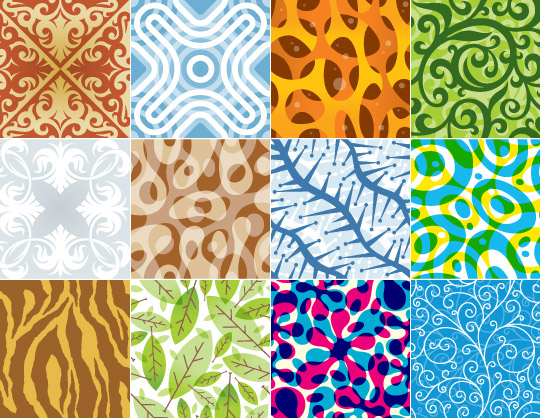
Pattern Swatches by Von Glitschka
Pattern tiles are easily created in Adobe Illustrator. Read the interview with Illustrator guru Von Glitschka.

The bristle brush was introduced in Adobe Illustrator CS5 (v15, May 2010) along with the Shape Builder tool, variable-width strokes, perspective drawing and more.
Bristle Brush Promo – video, 04:16
Project Five
Patterns & Brushes
Due: June 24th
Concept: Working with patterns and brushes in Adobe Illustrator.
Project Brief: Pattern tiles (repeating elements) can be produced in Adobe Illustrator by simply dragging objects, including photos, to the Swatches panel. Complex pattern tiles can be created by selecting multiple objects in your file and using the menu, Object > Pattern > Make – this will add the pattern swatch to the Swatches panel and invoke the Pattern Options dialog. Pattern tiles can be customized using the Pattern Options to create a variety of tiles. Pattern brushes can also be made from objects and pattern swatches to enhance your designs. Have fun working with patterns!
Adobe Illustrator also features a suite of brushes that let you stylize the appearance of paths. You can apply brush strokes to existing paths, or you can use the Paintbrush tool to draw a path and apply a brush stroke at the same time. Illustrator has five different types of brushes: calligraphic, scatter, art, pattern, and bristle. Custom brushes can be created, allowing for endless possibilities in creativity! Be expressive and don't worry about making mistakes!
- Getting Started – You guessed it, more observation!. Patterns are used in textile design, art, architecture, etc. Wall paper & wrapping paper, packaging, floor coverings, borders, tiles, trim work, etc. Start to carefully look at patterns and see if you can figure out if they were created in Adobe Illustrator and how they were achieved.
- Illustrator Help / Patterns
- Illustrator Help / Create and edit patterns
- Illustrator Help / Transforming objects
- Transforming Patterns – Press and hold the tilde key (~), located to the left of the number 1 key at the top of the keyboard to transform the pattern fill, leaving the shape untouched.
- Transform Panel Menu – The panel menu in the Transform panel has options for Transform Object Only (default setting), Transform Patterns Only and Transform Both.
- How to Create an Illustrative Vector Pattern Design
- Illustrator Help / Automatic corner generation | Illustrator CC
- Adobe Illustrator Guide: How to use symbols, patterns, and graphic styles – PDF 1.1 MB
- Illustrator Help / Brushes
- Illustrator Help / Painting with fills and strokes – contains info on variable-width strokes
- How to work with brushes
- Use Brushes – video, 04:00
- A Look Inside Pattern Brush Borders in Adobe Illustrator CC – video, 08:25
- Create a Pattern Brush – video, 10:00
- DesignTuts+ – Adobe Illustrator Brush tutorials
- DesignTuts+ – A Huge Compilation of 60 Free Illustrator Brushes
- 40 Awesome Sets of Free Adobe Illustrator Brushes to Bookmark
- Pattern & Brush Libraries – Adobe Illustrator ships with additional libraries that can be accessed using the panel menus (top right of panels) or Libraries buttons (bottom left of panels).
- Search for Patterns & Brushes – Search for Illustrator patterns and Illustrator brushes in your web browser and in your Adobe Creative Cloud Assets > Market – you'll find an incredible amount of resources that you can download and use to your heart's content!
Specifications: RGB color, Adobe Illustrator format.
Project Six
Typography
Due: July 1st
Concept: Create unique typographic examples in Adobe Illustrator.
Project Brief: Adobe Illustrator has a long history of being the go to application to create incredible typographic effects. Everything from type on paths to flowing text in unique shapes, decorative type to descriptive text and labels, Illustrator does it all. Be creative with Illustrator and make at least 3 unique typographic examples.
- Getting Started – Typography is all around us – everywhere – really, everywhere. Appliances in our homes, books and magazines, websites, email, ads on TV, movie and show titles & end credits, digital displays, posters, billboards, packaging, and the list goes on and on. Start to carefully look at type examples to see how it was crafted – most likely, any fancy looking type you see was created in Adobe Illustrator.
- Illustrator Help / Creating text
- Illustrator Help / Creating type on a path
- Illustrator Help / Scaling and rotating type
- Intro to the Touch Type Tool – video, 3:00
- The History of Typography – Animated Short – video, 5:09
- Touch Type – Selecting Overlapping Letters: Manipulating type with the Type Touch option may make selecting overlapping text really challenging, especially if you scale some type larger and some smaller. The solution is to select the letter that is overlapping the others and causing the selection issue (i.e. the easy one to select), use the menu, Object > Arrange > Send to Back. Now you can select the smaller letter and continue transforming!
- see additional links for Typography in sidebar
Specifications: 3 or more files, RGB color, PDF format
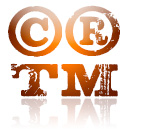
Special Characters
Copyright symbol (Option + G), Registered Trademark symbol (Option + R) and Trademark symbol (Option + 2) can all be easily typed on a Mac.
Bonus Tip
Twelve Must-know Mac OS Keyboard Shortcuts for Special Characters
Digital imaging pros know their computers inside and out, including their keyboards and important keyboard shortcuts for special characters to get the job done! The following 12 shortcuts are part of everyday keystrokes, worth memorizing to allow you to be productive and type like the pros!
| Name | Symbol | Keys |
|---|---|---|
| Acute Accent (résumé) | ´ | Option + E (followed by key press for vowel) |
| Bullet | • | Option + 8 |
| Cents | ¢ | Option + 4 |
| Copyright Symbol | © | Option + G |
| Degree Symbol (90 ˚F) | ˚ | Option + K |
| Ellipsis (She said she was a dancer…) | … | Option + ; (semicolon) |
| Em Dash (long dash—width of an M) | — | Option + Shift + - (hyphen) |
| En Dash (wide dash, width of an N: Monday–Friday, 6–9 pm) | – | Option + - (hyphen) |
| Eñe (Spanish character with a tilde over n: año, El Niño) | ñ | Option + N (followed by N) |
| Italicized f in ƒ/stop | ƒ | Option + F |
| Registered Trademark (officially used to mark one's property) | ® | Option + R |
| Trademark (unregistered, used to mark one's property) | ™ | Option + 2 |
Double-bonus Tip: Links to additional Apple and Windows special characters.
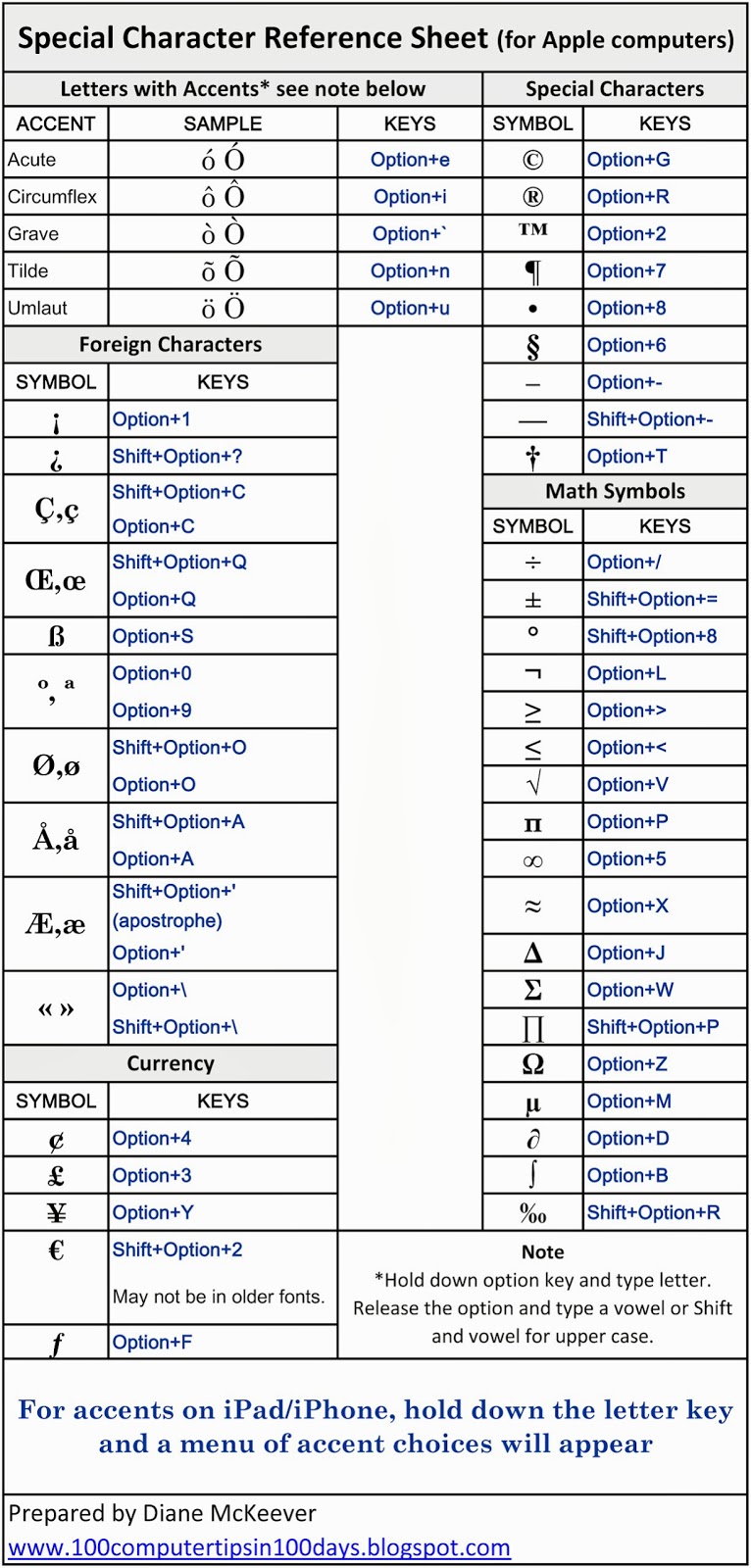
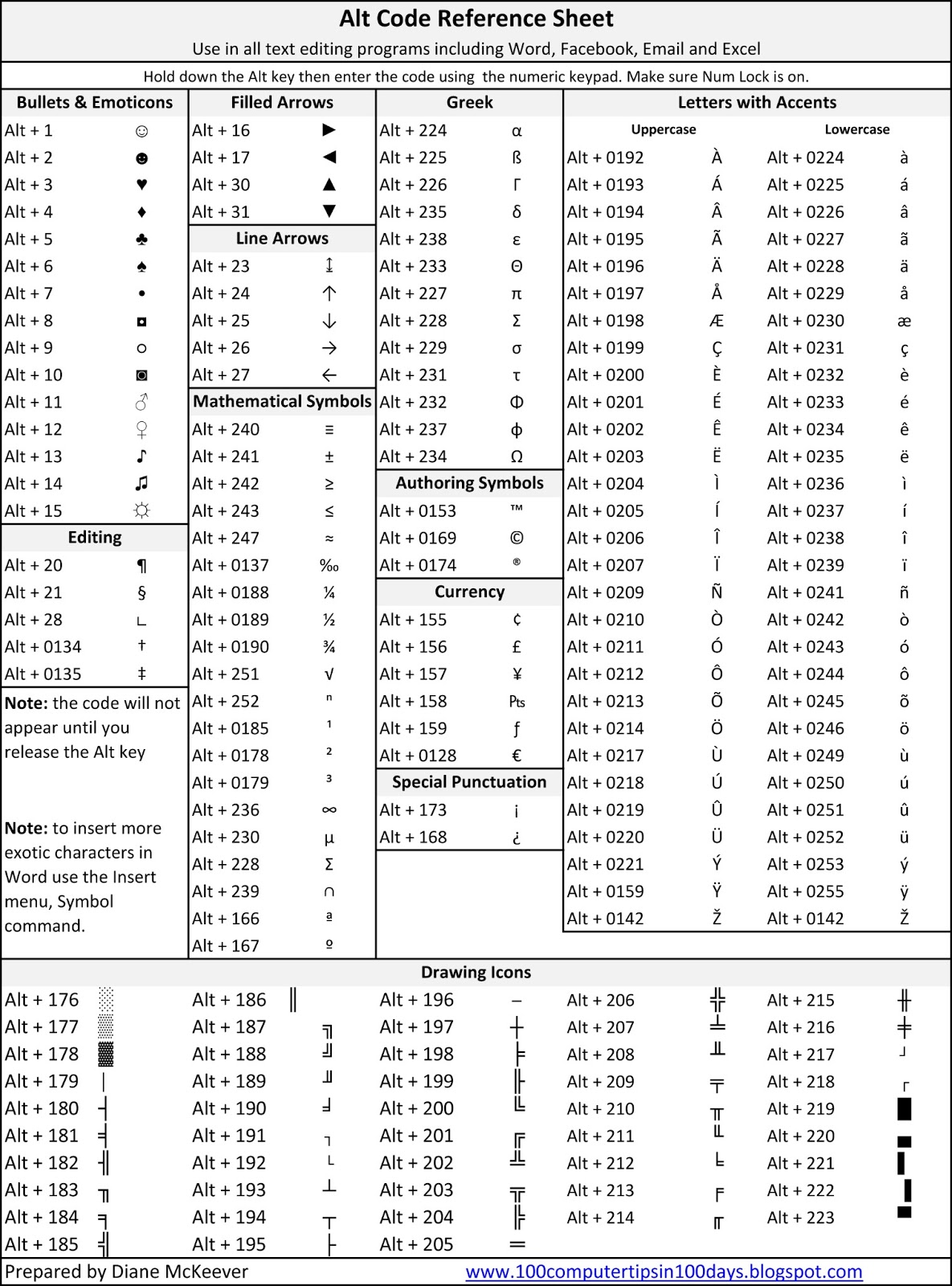
Triple-bonus Tip: Use the menu, > System Preferences… and select Keyboard in the second row to enable the Show keyboard and emoji viewers in menu bar. You'll be able to use the Keyboard Viewer to see where special characters live on the keyboard so you can type them and the Emoji & Symbols Viewer to select and insert emoji & special characters into your documents 😎
Quadruple-bonus Tip: The Apple icon () can be typed using Option + Shift + K (not available in all fonts).